

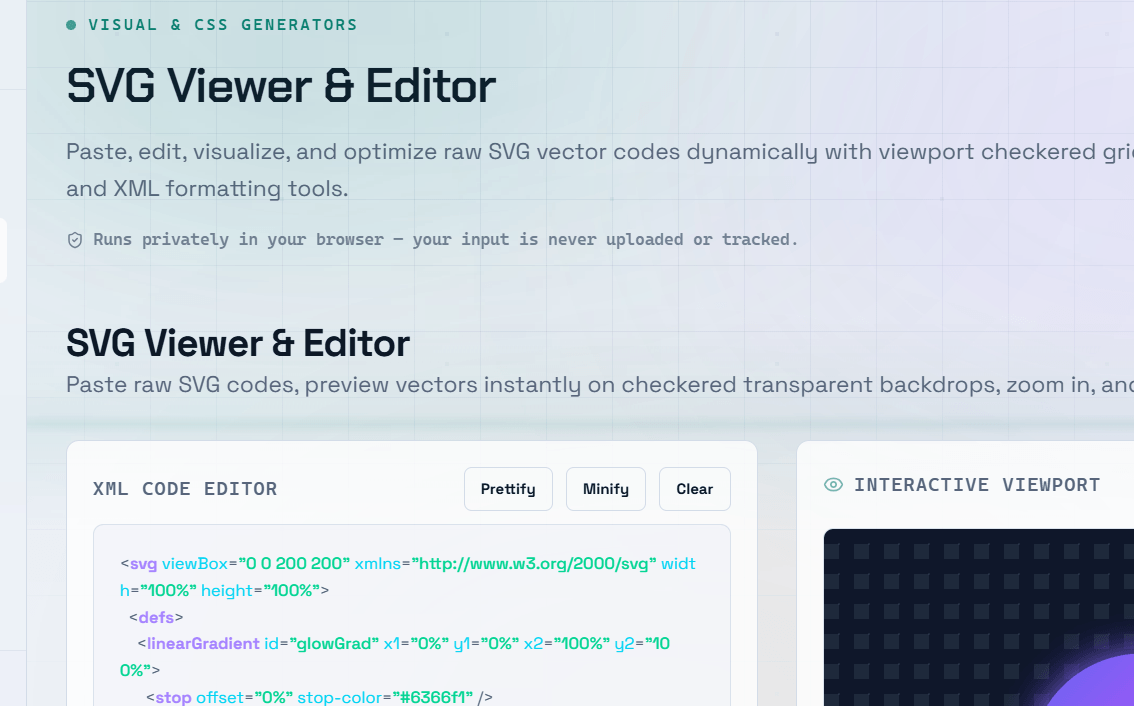
SVG files are widely used in modern web development for icons, logos, illustrations, design assets, and exported graphics. Understanding how to view, inspect, and implement SVG files correctly makes you more efficient as a developer. An online SVG viewer lets you render and inspect SVG code instantly in your browser—no design software like Adobe Illustrator or Figma required.
What Is an SVG File?
An SVG (Scalable Vector Graphics) file is an XML-based text file that describes two-dimensional graphics using mathematical definitions of shapes, paths, colors, and other graphical elements.
Because SVG is text-based, you can:
- Open it in any text editor.
- Inspect and modify its source code.
- Style it with CSS.
- Animate it with JavaScript.
- Scale it infinitely without losing quality.
Unlike raster formats such as PNG or JPEG, SVG graphics remain sharp at any resolution.
How to Open and View SVG Files
There are several ways to view SVG files:
- Web Browser — Drag and drop an SVG file into Chrome, Firefox, Edge, or Safari. Modern browsers render SVG files natively.
- Online SVG Viewer — Paste SVG code to preview, inspect, and debug it without downloading software.
- Code Editor — Open SVG files in editors like VS Code using an SVG Preview extension for side-by-side code and visual rendering.
- Image Viewer — Most modern operating systems support viewing SVG files directly.
- Design Software — Applications such as Figma, Sketch, and Adobe Illustrator can import and edit SVG files.
Inspecting SVG Code: What to Look For
When reviewing an SVG file, check the following:
viewBoxattribute — Defines the SVG coordinate system. Missing or incorrectviewBoxvalues often cause scaling issues.widthandheightattributes — Fixed dimensions can prevent responsive scaling. Consider removing them or controlling sizing with CSS.- Hardcoded
fillcolors — Values likefill="#333333"cannot easily be overridden with CSS. Replace them withfill="currentColor"when appropriate. - Unnecessary metadata — Remove editor metadata, comments, and unused elements to reduce file size.
- Embedded fonts — Convert text to paths if portability across systems is required.
Common SVG Implementation Issues
SVG Doesn’t Scale Correctly
Possible causes:
- Missing or incorrect
viewBox - Fixed
widthandheightattributes - CSS sizing conflicts
SVG Color Won’t Change
This usually occurs because the SVG contains hardcoded fill values.
Replace:
fill="#333333"with:
fill="currentColor"Then control the color using CSS.
SVG File Is Too Large
Large SVG files often contain:
- Unnecessary metadata
- Hidden layers
- Comments
- Unoptimized paths
Run the SVG through an optimizer such as SVGO before deploying it.
SVG Isn’t Displaying
Possible reasons include:
- Invalid SVG syntax
- Missing closing tags
- Incorrect namespaces
- Broken path definitions
An online SVG viewer can help identify rendering errors quickly.
Quick Fix: If your SVG icon doesn’t respond to CSS color changes, replace every
fill="#xxxxxx"value withfill="currentColor". The icon will then inherit the text color of its parent element.
SVG vs. PNG: When Should You Use Each?
Use SVG for:
- Icons
- Logos
- Simple illustrations
- Charts
- UI graphics
- Scalable interface elements
Use PNG for:
- Photographs
- Screenshots
- Images with complex textures
- Pixel-perfect artwork
For most web interface graphics, SVG offers smaller file sizes, sharper rendering, and greater flexibility.
Frequently Asked Questions
Q: Why does my SVG look correct in a viewer but not in my browser?
A: Common causes include:
- Missing
viewBox - Fixed
widthandheightattributes - References to external assets that aren’t available
- CSS overriding SVG styles
Inspect the SVG source and verify that all required attributes are present.
Q: How do I make an SVG responsive?
A: To create a responsive SVG:
- Remove fixed
widthandheightattributes. - Ensure the SVG includes a valid
viewBox. - Set dimensions using CSS (for example,
width: 100%; height: auto;).
The viewBox allows the SVG to scale proportionally within its container.
Q: Can I use SVG files directly in React?
A: Yes. Tools such as SVGR, Vite, and Create React App allow you to import SVG files as React components.
This enables you to:
- Pass props
- Change colors dynamically
- Control size
- Apply CSS classes
- Animate SVG elements
Q: What is the difference between SVG sprite sheets and individual SVG files?
A: An SVG sprite sheet combines multiple icons into a single SVG file using <symbol> elements. Individual icons are referenced with the <use> element.
Sprite sheets:
- Reduce HTTP requests
- Improve loading performance
- Centralize icon management
Individual SVG files are easier to organize but may increase network requests if not bundled.
Q: How do I debug an SVG that isn’t displaying correctly?
A: Follow these steps:
- Paste the SVG code into an online SVG viewer.
- Verify that the
viewBox,width, andheightattributes are correct. - Check for invalid SVG syntax.
- Inspect the SVG using your browser’s Developer Tools.
- Look for CSS rules that may be hiding or overriding the SVG’s appearance.