

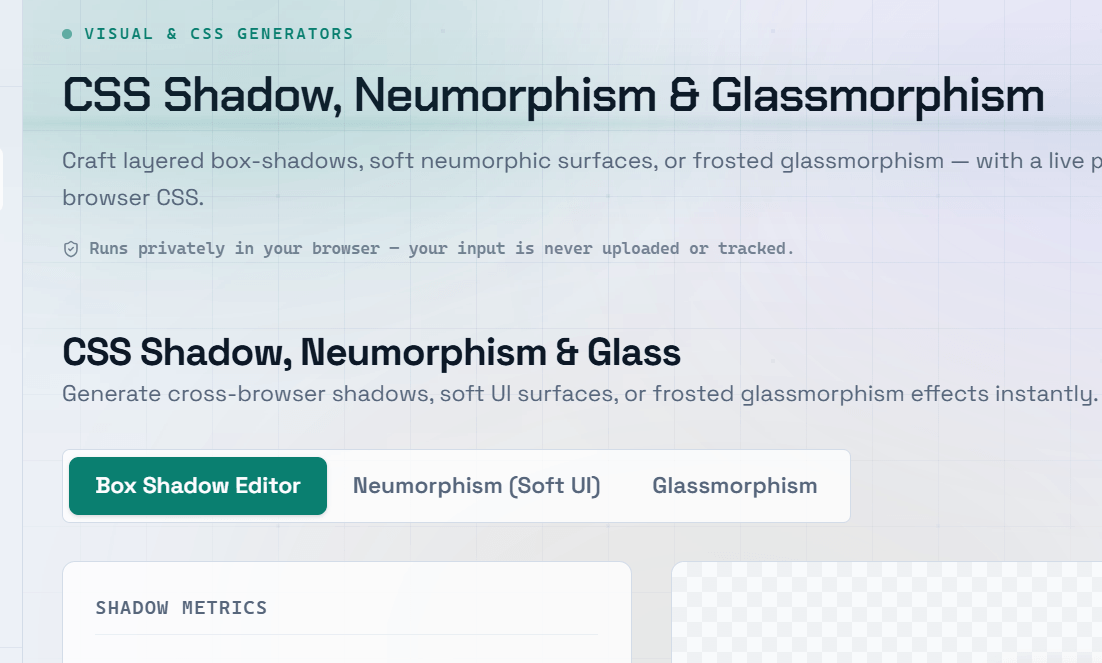
Shadows are one of the most subtle yet impactful CSS effects for creating depth, hierarchy, and visual polish in modern user interfaces. When used thoughtfully, they make elements feel elevated, clickable, or tactile. A CSS shadow generator lets you adjust shadow settings visually and instantly copy production-ready CSS, eliminating trial and error.
CSS Box Shadow Syntax
The box-shadow property consists of several values that control the appearance of the shadow:
- Offset X (
offset-x) — Horizontal shadow position. Positive values move the shadow to the right, while negative values move it to the left. - Offset Y (
offset-y) — Vertical shadow position. Positive values move the shadow downward, while negative values move it upward. - Blur Radius (
blur-radius) — Controls how soft or blurred the shadow appears. A value of0creates a sharp edge. - Spread Radius (
spread-radius) — Determines how much the shadow expands or contracts beyond the element’s edges. - Color — Defines the shadow color. Using
rgba()allows you to add transparency for more natural-looking shadows. inset(Optional) — Places the shadow inside the element instead of outside it.
Layering Multiple Box Shadows
CSS allows multiple shadows to be applied to a single element by separating each shadow with commas.
Layering shadows creates more realistic depth and is commonly used in design systems such as Tailwind CSS. A typical approach combines:
- A small, sharp shadow close to the element.
- A larger, softer shadow positioned farther away.
This produces a more natural effect than relying on a single large shadow.
CSS Text Shadow
The text-shadow property adds depth and emphasis to text.
Common Examples
text-shadow: 2px 2px 4px rgba(0, 0, 0, 0.3);Classic soft text shadow.
text-shadow: 0 0 8px #3B82F6;Glow effect without any offset.
text-shadow: 1px 1px 0 #000, -1px -1px 0 #000;Text outline created using multiple shadows.
Inset Box Shadow (Inner Shadow)
Adding the inset keyword places the shadow inside the element rather than outside.
Inset shadows are useful for creating:
- Pressed button effects
- Input field depth
- Inner glow effects
- Skeuomorphic UI elements
Design Tip: Use
box-shadowinstead of borders for focus states. For example:box-shadow: 0 0 0 3px rgba(59, 130, 246, 0.5);This creates a smooth focus ring without causing layout shifts that can occur when adding or changing borders.
Using a CSS Shadow Generator
A CSS shadow generator helps you:
- Adjust shadow offsets with sliders.
- Control blur and spread visually.
- Choose shadow colors with transparency.
- Preview changes in real time.
- Copy production-ready CSS instantly.
Some generators also include vendor prefixes for improved browser compatibility.
Frequently Asked Questions
Q: How do I create a soft shadow in CSS?
A: Use a small (or zero) offset, a large blur radius (typically 12–20px), and a low-opacity color such as:
rgba(0, 0, 0, 0.08)Soft shadows create subtle depth, while sharper shadows produce a stronger visual effect.
Q: Does box-shadow affect layout or document flow?
A: No. The box-shadow property is purely visual and does not affect the size, position, or layout of surrounding elements. This makes it ideal for hover animations, focus states, and elevation effects without causing layout shifts.
Q: How do I remove a box shadow?
A: Set the property to:
box-shadow: none;This is commonly used when creating pressed button states or disabling shadows in responsive layouts. You can also animate between a shadow and none using CSS transitions.
Q: Can I use box-shadow instead of borders?
A: Yes. For example:
box-shadow: 0 0 0 2px #3B82F6;This creates a 2px outline using the shadow’s spread value without affecting the element’s dimensions. It’s a popular technique for focus indicators and selected states.
Q: What is the performance impact of CSS shadows?
A: CSS shadows can increase rendering work, particularly on pages with many heavily shadowed elements. Complex shadows may impact scrolling and animations on lower-powered devices.
To improve performance:
- Use simpler shadows when possible.
- Avoid excessive blur values.
- Reduce shadow complexity on mobile devices.
- Consider using
will-change: transformfor animated elements with large shadows when appropriate.