

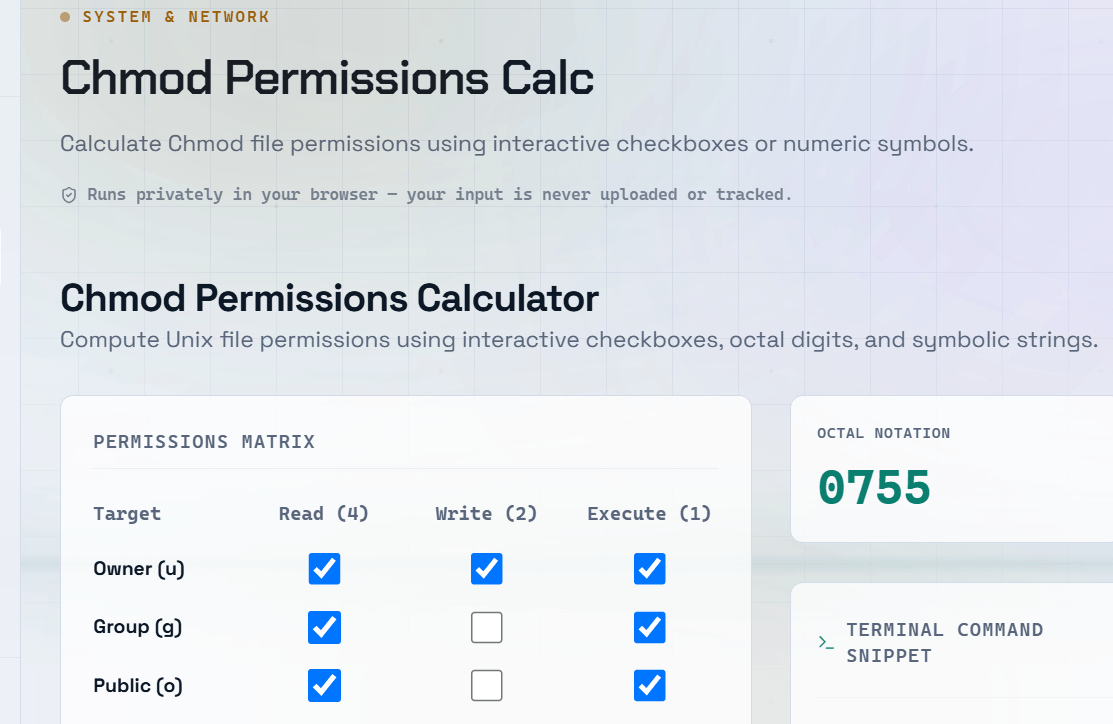
Linux file permissions are fundamental to system security, yet the chmod command can be confusing for developers who are new to Linux or server administration. Once you understand the permission model, setting file and directory permissions becomes straightforward. A chmod calculator makes the process even easier by allowing you to select permissions visually and automatically generating the correct chmod command.
How Linux File Permissions Work
Every file and directory in Linux has three permission sets assigned to three groups:
- Owner (User) — The user who owns the file or directory.
- Group — Users who belong to the assigned group.
- Others — Everyone else on the system.
Each group can have three types of permissions:
- Read (
r) — View the contents of a file or list files inside a directory. - Write (
w) — Modify or delete a file, or create and remove files within a directory. - Execute (
x) — Run a file as a program or access a directory using commands likecd.
Understanding Octal chmod Permissions
The chmod command uses octal (base-8) numbers to represent permissions.
Permission values:
- Read (
r) = 4 - Write (
w) = 2 - Execute (
x) = 1
Add these values together to determine the permission for each user group.
Common Permission Values
- 7 = 4 + 2 + 1 — Read, Write, Execute (Full permissions)
- 6 = 4 + 2 — Read, Write
- 5 = 4 + 1 — Read, Execute
- 4 = 4 — Read only
- 0 — No permissions
Security Warning:
chmod 777(full permissions for everyone) is almost never the correct choice. It creates significant security risks, especially on web servers. Always grant the minimum permissions required.
Common chmod Permission Examples
chmod 644 file.txt— Owner can read and write; group and others can only read. Common for website files.chmod 755 script.sh— Owner can read, write, and execute; group and others can read and execute. Common for executable scripts.chmod 600 private.key— Only the owner can read and write. Recommended for SSH private keys and sensitive files.chmod 700 scripts/— Only the owner has full access. Suitable for private directories.
Frequently Asked Questions
Q: What is the difference between chmod 755 and chmod 777?
A: chmod 755 gives the owner full permissions while allowing everyone else to read and execute the file. chmod 777 grants full permissions to everyone, making it a major security risk on shared or production servers. Avoid using 777 unless absolutely necessary.
Q: How do I apply chmod recursively to a directory?
A: Use the -R (recursive) option:
chmod -R 755 /your/directoryThis command applies the specified permissions to the directory and everything inside it. Use recursive permission changes carefully, as different files may require different permission levels.
Q: What permissions should I use for web server files?
A: A common and secure configuration is:
- Files:
644 - Directories:
755
PHP scripts and other server-side files should never be set to 777. Your web server user (such as www-data, apache, or nginx) typically only needs read access.
Q: How do I check the current permissions of a file?
A: Use the following command:
ls -l filenameThis displays the symbolic permissions, owner, group, file size, and modification date.
To display permissions in octal format, use:
stat -c '%a %n' filenameThis shows the numeric permission value alongside the file name.
Q: What is the difference between chmod and chown?
A: These commands serve different purposes:
chmod— Changes file or directory permissions (what users are allowed to do).chown— Changes file or directory ownership (which user and group own the file).
Proper ownership and permissions work together to provide secure access control, especially on Linux servers and web hosting environments.