

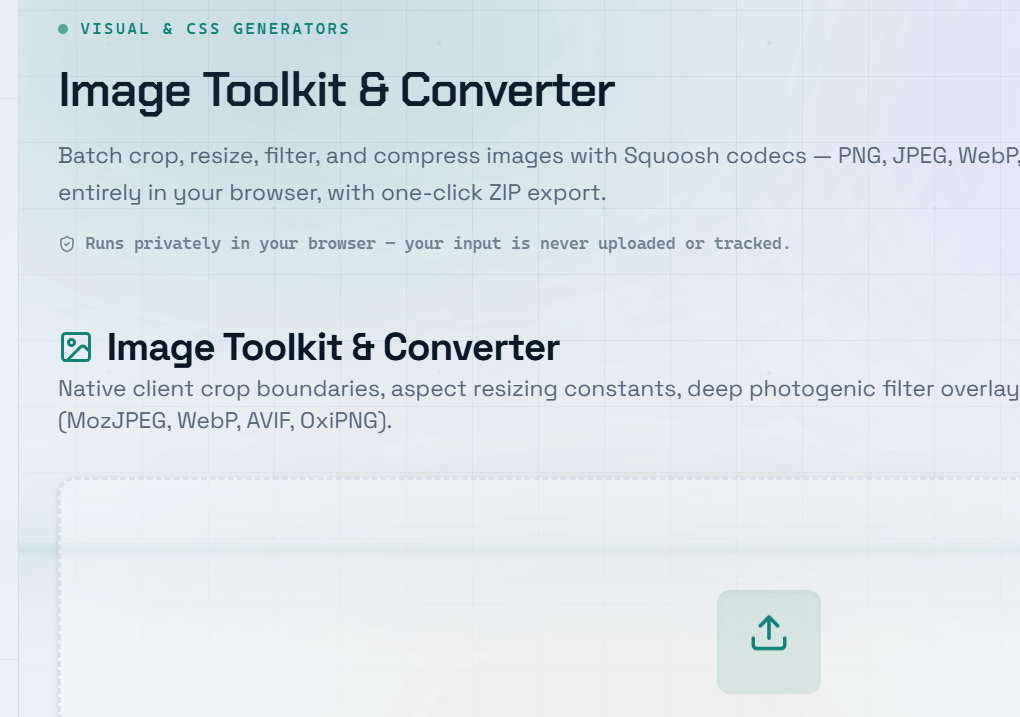
Images are often the largest contributor to a webpage’s total size. Unoptimized images slow page load times, hurt Core Web Vitals, and increase bandwidth costs. An online image toolkit simplifies the optimization process by combining image compression, format conversion, resizing, and other utilities into one place. In many cases, it can reduce image file sizes by 70–80% with little or no visible loss in quality.
Why Image Optimization Matters
On most websites, images account for 60–70% of the total page weight.
Large images can negatively impact key performance metrics, including:
- First Contentful Paint (FCP)
- Largest Contentful Paint (LCP)
- Time to Interactive (TTI)
- Overall page load speed
Because Google’s Core Web Vitals measure these metrics, image optimization plays an important role in both website performance and SEO.
Choosing the Right Image Format
Selecting the appropriate image format is one of the easiest ways to improve performance.
- WebP — The best all-around format for most websites. Typically 25–35% smaller than JPEG or PNG while maintaining similar visual quality.
- JPEG (JPG) — Ideal for photographs and complex images with gradients. Uses lossy compression for smaller file sizes.
- PNG — Best for graphics requiring transparency, screenshots, or images with flat colors. Uses lossless compression.
- SVG — Perfect for logos, icons, and illustrations. Vector-based, infinitely scalable, and usually very small in size.
- AVIF — A next-generation image format offering up to 50% smaller files than JPEG. It delivers excellent compression but has slower encoding and browser support may still vary.
Image Compression: Lossy vs. Lossless
There are two primary types of image compression:
Lossy Compression
Lossy compression removes image data that is difficult for the human eye to notice, resulting in significantly smaller file sizes.
Common formats include:
- JPEG
- WebP
- AVIF
For most websites, a quality setting between 75–85% provides an excellent balance between image quality and file size.
Lossless Compression
Lossless compression preserves all original image data while reducing file size.
It is commonly used by:
- PNG
- SVG (when optimized)
Lossless compression is recommended when preserving every pixel is important.
Quick Win: Convert existing JPEG and PNG images to WebP. This simple change often reduces image payload by 30–50% with virtually no visible quality difference for most users.
Resizing and Lazy Loading Images
For the best performance:
- Resize images to the maximum size at which they will actually be displayed.
- Use the
srcsetattribute to serve different image sizes for different screen resolutions. - Add
loading="lazy"to<img>elements to delay loading images until they approach the viewport.
Lazy loading reduces initial page load time by preventing below-the-fold images from loading until they’re needed.
Frequently Asked Questions
Q: What is the best image format for web performance?
A: For most websites, WebP offers the best balance of compression, quality, browser support, and transparency.
Other recommendations include:
- SVG — Logos, icons, and vector graphics.
- JPEG — High-quality photographs.
- PNG — Transparent images and screenshots.
- AVIF — Maximum compression where browser support is sufficient.
Q: How much can I compress an image without noticeable quality loss?
A: Most JPEG images can be compressed using a quality setting between 75–85%, reducing file size by 50–70% while maintaining excellent visual quality.
WebP typically achieves even better compression at similar quality levels.
Q: Should I optimize images before or after uploading them to my CMS?
A: Optimize images before uploading whenever possible.
Although many CMS platforms perform automatic optimization, pre-optimized images:
- Upload faster.
- Consume less storage.
- Produce smaller generated thumbnails and responsive image variants.
Q: What is the srcset attribute, and how does it improve performance?
A: The srcset attribute allows you to provide multiple versions of an image at different resolutions.
The browser automatically selects the most appropriate image based on:
- Screen size
- Device resolution
- Pixel density
This helps mobile users download smaller images while maintaining high quality on larger desktop displays.
Q: How can I check whether my images are slowing down my website?
A: Use performance auditing tools such as:
- Google PageSpeed Insights
- Lighthouse (built into Chrome DevTools)
These tools identify opportunities to:
Improve loading performance and Core Web Vitals.
Compress oversized images.
Convert images to modern formats like WebP or AVIF.
Properly resize images.