

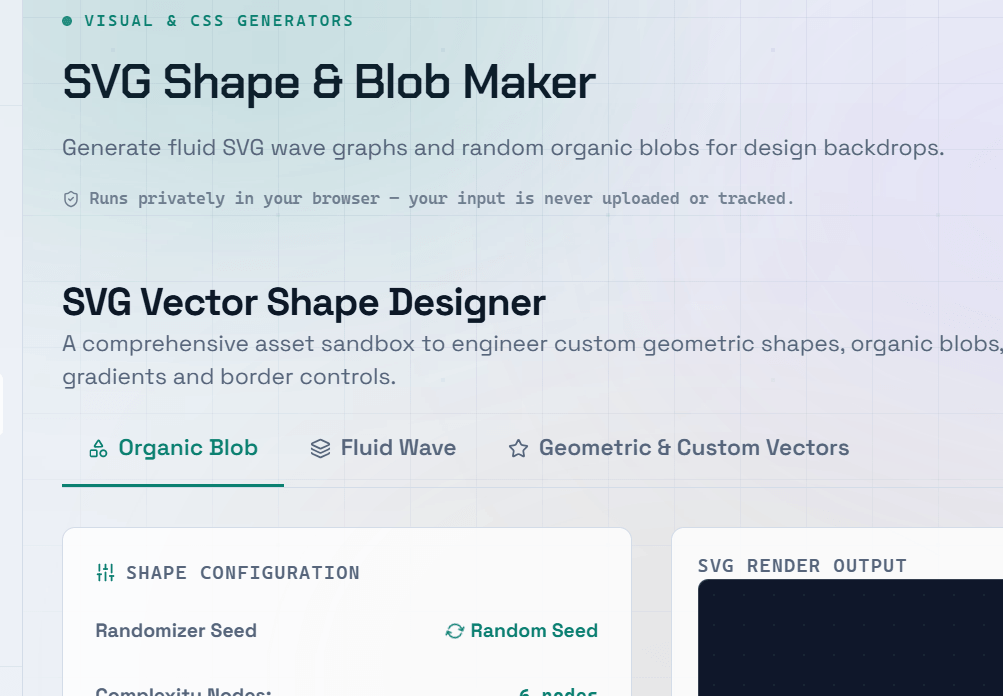
SVG (Scalable Vector Graphics) is the ideal image format for icons, logos, illustrations, and decorative web graphics. Unlike raster images, SVGs scale to any size without losing quality, typically have very small file sizes, and can be styled with CSS or animated using JavaScript. An online SVG maker lets you create and edit SVG graphics without requiring design software like Adobe Illustrator or Figma.
What Is SVG and Why Use It?
SVG offers several advantages over traditional image formats:
- Perfectly scalable — Remains sharp at any size with no pixelation, even on Retina and 4K displays.
- Smaller file sizes — Simple graphics are often 60–80% smaller than equivalent PNG images.
- Fully customizable — Change colors, sizes, and styles using CSS without modifying the original file.
- Animation support — Animate SVG elements with CSS or JavaScript for interactive graphics.
- Accessible — Supports
<title>and<desc>elements to improve accessibility for screen readers.
Basic SVG Shapes You Can Create
SVG provides several built-in shape elements:
<rect>— Creates rectangles and squares. Use therxandryattributes for rounded corners.<circle>— Creates perfect circles using a center point and radius.<ellipse>— Creates ovals with separate horizontal and vertical radii.<line>— Draws a straight line between two points.<polyline>— Creates a series of connected straight lines.<polygon>— Creates closed geometric shapes made from multiple connected points.<path>— The most versatile SVG element, capable of drawing curves, arcs, and complex custom shapes.
How to Use an SVG Maker Online
Creating SVG graphics is simple:
- Select a drawing or shape tool.
- Draw shapes on the canvas.
- Customize the fill color, stroke color, stroke width, and opacity.
- Combine and layer multiple shapes to build more complex graphics.
- Group and align elements using layout tools.
- Export the finished artwork as an SVG file or copy the raw SVG code.
Embedding SVG in Your Website
There are several ways to use SVG files on a website.
Inline SVG
Paste the SVG markup directly into your HTML.
Benefits:
- Full CSS styling support
- JavaScript animation support
- Easy color customization
- Excellent for icons and interactive UI elements
Image (<img>) Tag
Use the SVG file as the source of an image.
Benefits:
- Easy to implement
- Browser caching
- Ideal for standalone illustrations
Limitations:
- Limited CSS styling and animation.
CSS background-image
Use SVG as a CSS background.
Best for:
- Decorative graphics
- Background patterns
- UI embellishments
Best Practice: Use inline SVG for icons, buttons, and UI elements that require styling or animation. Use the
<img>tag for standalone illustrations that don’t require interactivity.
Optimizing SVG Files for Production
Many design applications export SVG files with unnecessary metadata, comments, and redundant attributes.
Before deploying to production:
- Remove unnecessary metadata.
- Eliminate unused elements.
- Minify the SVG code.
- Optimize paths and attributes.
Tools such as SVGO can typically reduce SVG file sizes by 40–60% without affecting visual quality.
Frequently Asked Questions
Q: Can I edit SVG files with a text editor?
A: Yes. SVG files are plain XML documents, so they can be opened and edited in any text editor.
For simple changes such as:
- Colors
- Dimensions
- Stroke widths
- IDs
- Classes
editing the SVG source is often faster than reopening a design application.
Q: What is the difference between SVG and PNG?
A: The two formats serve different purposes:
- SVG — Vector-based, infinitely scalable, ideal for logos, icons, and illustrations.
- PNG — Raster-based, made of pixels, best suited for photographs, screenshots, and images requiring lossless transparency.
For most interface graphics, SVG is the preferred choice.
Q: How do I change the color of an SVG using CSS?
A: For inline SVGs:
- Use the
fillproperty to change fill colors. - Use the
strokeproperty to change outline colors. - Set
fill="currentColor"within the SVG so it automatically inherits the text color of its parent element.
Q: Can SVGs be animated?
A: Yes. SVGs support both CSS and JavaScript animations.
Common options include:
- CSS transitions
- CSS keyframe animations
- JavaScript
- Animation libraries such as GSAP or Anime.js
CSS works well for simple hover effects, while JavaScript provides greater control for complex animations.
Q: Are SVGs accessible to screen readers?
A: Yes. Improve SVG accessibility by:
- Adding a
<title>element to describe the graphic. - Including a
<desc>element for additional context. - Using appropriate
aria-labelattributes when necessary.
For decorative SVGs that do not convey meaningful information, use:
aria-hidden="true"to prevent screen readers from announcing them.