

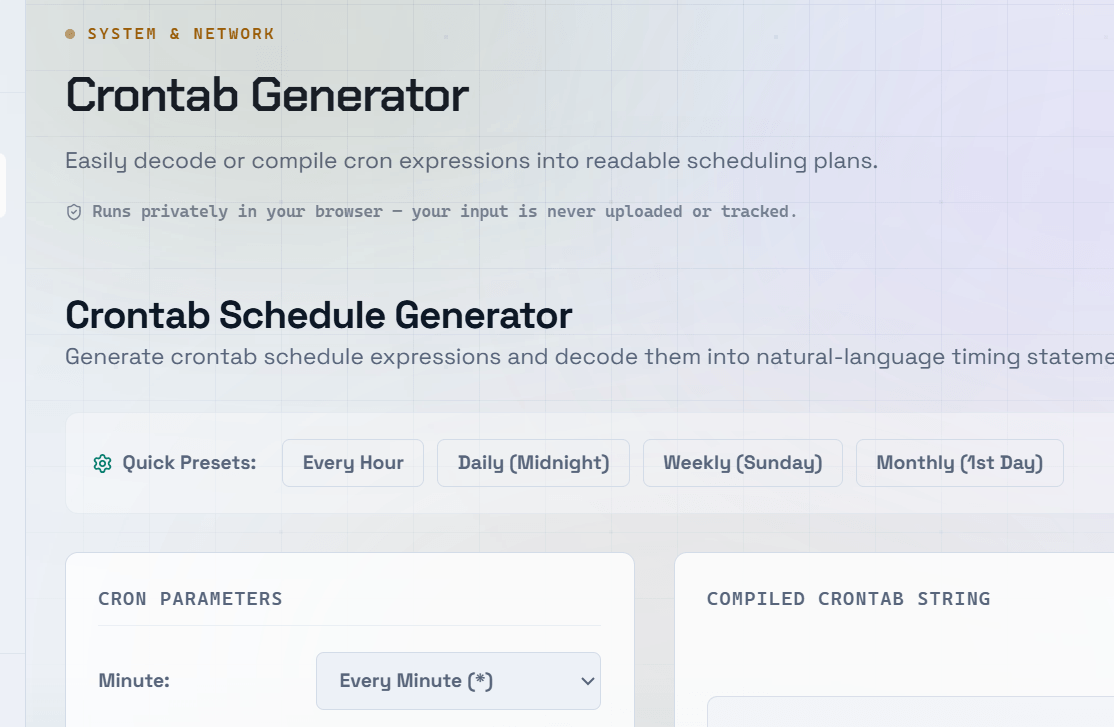
Cron is one of the most useful utilities on any Linux server. It lets you automate repetitive tasks — such as database backups, log rotation, email reports, cache clearing, and data synchronization — on a precise schedule without manual intervention. A crontab generator removes the guesswork by helping you create valid cron expressions quickly and accurately.
What Is a Cron Job?
A cron job is a scheduled task in Linux that runs automatically at specified intervals.
Cron reads a configuration file called the crontab (cron table), which defines:
- When a task should run.
- What command or script should be executed.
Cron jobs are commonly used for:
- Database backups
- Log rotation
- Sending scheduled emails
- Generating daily or weekly reports
- Clearing cache and temporary files
- Synchronizing files or databases
- Running maintenance scripts
Crontab Syntax — The Five Time Fields
A standard cron expression consists of five time fields:
- Minute —
0–59 - Hour —
0–23(24-hour format) - Day of Month —
1–31 - Month —
1–12(orJan,Feb, etc.) - Day of Week —
0–7(0and7both represent Sunday)
Common Cron Expression Examples
0 0 * * *— Every day at 12:00 AM (midnight).0 9 * * 1— Every Monday at 9:00 AM.*/5 * * * *— Every 5 minutes.0 0 1 * *— On the first day of every month at midnight.30 8 * * 1-5— Every weekday (Monday–Friday) at 8:30 AM.0 */6 * * *— Every 6 hours.
Important: Always test your command manually before adding it to cron. Cron runs in a minimal environment and may not use the same
PATHas your terminal session. Whenever possible, use absolute paths (for example,/usr/bin/python3instead ofpython3).
Managing Your Crontab
Useful crontab commands include:
crontab -e— Edit your personal crontab.crontab -l— List all existing cron jobs.crontab -r— Remove all cron jobs (use with caution).sudo crontab -e— Edit the root user’s crontab for system-wide scheduled tasks.
Why Use a Crontab Generator?
Cron expressions are compact but easy to misconfigure.
A crontab generator helps you:
- Select schedules using a visual interface.
- Generate valid cron expressions automatically.
- Avoid syntax errors.
- Create complex schedules such as:
- Every third Tuesday
- Every weekday
- Every six hours
- The first day of every month
- Custom recurring intervals
Frequently Asked Questions
Q: Why is my cron job not running?
A: Common causes include:
- Incorrect cron expression syntax.
- Missing execute permissions (
chmod +x). - Using relative paths instead of absolute paths.
- Environment variables (such as
PATH) not being available to cron. - The cron service not running.
Check log files such as:
/var/log/syslog/var/log/cron
for troubleshooting information.
Q: How do I make a cron job run every 30 minutes?
A: Use the following cron expression:
*/30 * * * *This runs the job at :00 and :30 every hour.
Q: Can cron jobs run at specific times on specific days?
A: Yes. You can combine the day of month and day of week fields to create highly specific schedules. Keep in mind that when both fields are specified, traditional cron implementations generally treat them as OR conditions rather than AND conditions.
Q: How do I log the output of a cron job?
A: Redirect both standard output and error output to a log file:
0 0 * * * /path/to/script.sh >> /var/log/myjob.log 2>&1In this example:
>>appends output to the log file.2>&1redirects error messages to the same log file.
Q: What is the difference between cron and at?
A: Both are scheduling utilities, but they serve different purposes:
cron— Runs recurring tasks on a fixed schedule.at— Runs a command once at a specified future time.
Use cron for recurring automation and at for one-time scheduled tasks.